Step by Step procedure to Deploy iPhone Apps to Real Devices (Tutorial)


The first step towards testing your applications on a real device is to sign up for the iPhone Developer Program at http://developer.apple.com/iphone/program/. There are two programs available - Standard and Enterprise. For most developers wanting to release applications on the App Store, they can simply sign up for the Standard program, which costs US$99. 
Check out http://developer.apple.com/iphone/program/apply.html to know more about the differences between the Standard and Enterprise programs.


Deploying iPhone Apps to Real devices :-

In order to test your iPhone applications on your device, you need to obtain an iPhone Development Certificate from the iPhone Developer Program Portal. This needs to be done once for every device you wish to test your apps on.


1.                Obtaining the identifier of your iPhone/iPod touch:-
First, obtain the 40-character identifier that uniquely identitfies your iPhone/iPod Touch. To do so, connect your device to your Mac and start Xcode. Select the Window > Organizer menu item to launch the Organizer application.


2.                Generating a Certificate Signing Request :-
Before you can request a development certificate from Apple, you need to generate a Certificate Signing Request. This step must be performed once for every device you wish to test on. To generate the request, you can use the Keychain Access application located in the Applications/Utilities/ folder
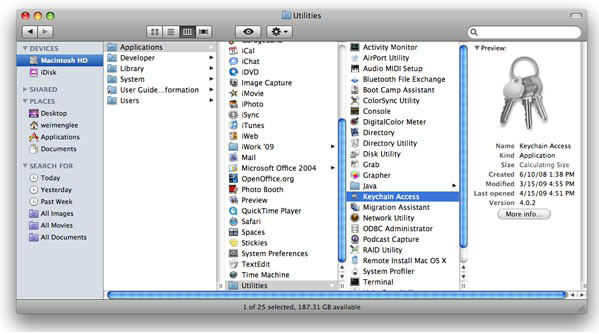

In the Keychain Access application, select the Keychain Access > Certificate Assistant menu and select Request a Certificate From a Certificate Authority


In the Certificate Assistant window , enter your email address, check the Saved to disk radio button and check the Let me specify key pair information checkbox. Click Continue.

Choose a key size of 2048 bits and use the RSA algorithm. Click Continue.

   You will be asked to save the request to a file. Use the default name suggested and click Save


3.                Logging in to the iPhone Developer Program Portal :-
Once you have generated the certificate signing request, you need to login to Apple's iPhone Dev Center. Click on the iPhone Developer Program Portal link on the right of the page.


  In the iPhone Developer Program Portal page, click the Launch Assistant button to walk you through the process of provisioning your iPhone and generating the development certificate.


   You should see the welcome page as shown. Click Continue.


  First, you will be asked to create an App ID. An App ID is a series of characters used to   uniquely identify an application (or applications) on your iPhone. You only need to create an App ID once per application, i.e. you do not need a new App ID for new versions of your app. Enter a friendly name to describe this App ID (to be generated by Apple). Click Continue.


The next screen allows you to provide a description of your iPhone/iPod Touch. You need to provide the device ID that you have obtained earlier. Click Continue.


You are now ready to submit the certificate signing request to Apple. The instructions on the screen show you the steps that you have performed earlier. Click Continue.


  In this screen, click the Choose File button to select the certificate signing request file that you have created earlier. Once the file has been selected, click Continue.


  Provide a description for your provisioning profile. A Provisioning profile will be generated   so that you can download it at a later stage and install it on your device. Click Generate.


   A Provisioning profile will now be generated. Once it is generated, click Continue.


   You are now ready to download the generated Provisioning profile onto your Mac. Click Continue.


Drag and drop the downloaded Provisioning profile (in the Downloads folder) onto Xcode (located in the Dock). This will install the Provisioning profile onto your connected iPhone/iPod Touch. Click Continue.


You can verify that the Provisioning profile is installed correctly on your device by going to the Organizer application and viewing the Provisioning section to see if the profile has been added.


Back in the iPhone Developer Program Portal, you are now ready to download and install the development certificate onto your iPhone/iPod Touch. Click the Download Now button to download the development certificate to your Mac. Click Continue.


In the Downloads folder of your Mac, double-click on the developer_identify.cer file that you have just downloaded to install it into a keychain on your Mac. When prompted, click OK.


   Back in the iPhone Developer Program Portal, you can now verify that the certificate has been installed properly in the Keychain Access application. Click Continue.

  In the Keychain Access application, select the login keychain and look for the certificate named "iPhone Developer:". If you can see it there, your certificate is installed correctly.


   You are now almost ready to deploy your iPhone application onto your iPhone/iPod Touch. Click Continue.


   Click Done to dismiss the dialog.


  In Xcode, under the Active SDK item (if this item is not already on the toolbar, go to View >   Customize Toolbar and add it to the toolbar), select the OS version number of the device that is currently connected to your Mac.


With your application project open in Xcode, press Command-R to run the application. You will now be prompted for permission to access the certificate saved in your keychain. Click Allow (or Always Allow) to go ahead with the signing.


   Your application will now be deployed to the device. You can see its progress in the Summary tab of the Organizer application.


   Once the application is deployed onto your device, it will be running automatically. You can capture screenshots of your device by going to the Screenshot tab of the Organizer application, and pressing the capture button.


The iPhone Developer program allows you to provision up to 100 devices for testing purposes. Once a device is provisioned, you can then use the development certificate to deploy your applications onto it.


Thanks for reading this article. Hope this has helped you. Stay tuned at Techspace.

Load SVG images in iPhone / iPad using Objective C


You might have struggled a lot to load SVG (Scalable Vector Graphics)  image(s) in your iPhone or iPad application using Objective C XCode. Objective C with Cocoa helps us to load png, jpg, tiff and other image formats file using UIImage and UIImageView but UIImageView will not allow you to load SVG files. 

What are SVG images?

Scalable Vector Graphics (SVG) is a XML-based file format for two-dimensional vector graphics. SVG images and their behaviors are defined in XML text files. This means that they can be searched, indexed, scripted and, if required, compressed. As XML files, SVG images can be created and edited with any text editor, but it is often more convenient to create them with drawing programs such as Inkscape.

Now lets know how we can load SVG images in our iPhone or iPad application using Cocoa Objective-C.  UIWebView allows us to load SVG images directly to our app. The code to load SVG image is given below.
NSString *path = [[NSBundle mainBundle] pathForResource:@"image" ofType:@"svg"];
NSURL *fileURL = [[NSURL alloc] initFileURLWithPath:path];
NSURLRequest *req = [NSURLRequest requestWithURL:fileURL];
[webView setScalesPageToFit:YES];
[webView loadRequest:req];
Found interesting? Stay tuned at TechSpace for much more interesting solutions. Please leave a comment in comment  box if you have any queries.

Android 4.0 ICS to come for 16 HTC mobiles very soon


Android 4.0 named Ice Cream Sandwich(ICS) is the most awaited android update for which all the smart phone users are waiting for. Some of the mobile manufacturers have their mobiles in the market which is powered with ICS. 

HTC has announced that 16 of its smart-phones is going to get the much awaited Android Ice Cream Sandwich (Android 4.0) update in the coming month. HTC Sensation, HTC Sensation XE, HTC Sensation 4G and HTC Sensation XL mobiles are going to get update very soon. 

Below given HTC users will get notifications right when the update is available for their mobile. 

  1. HTC DROID Incredible 2 
  2. HTC Amaze 4G 
  3. HTC Desire S 
  4. HTC Desire HD 
  5. HTC EVO 3D 
  6. HTC EVO Design 4G 
  7. HTC Incredible S 
  8. HTC Sensation 
  9. HTC Sensation XL 
  10. HTC Sensation 4G 
  11. HTC Sensation XE 
  12. HTC Raider 
  13. HTC Rezound 
  14. HTC Rhyme 
  15. HTC Thunderbolt 
  16. HTC Vivid  

So HTC users, be prepared to update your mobile with the all new ICS very soon. Please post your comments and share this article.

(Solved) Integrate C++ code with Objective C in XCode


XCode is a IDE which works only on MAC systems. XCode provides support to program in Objective-C language, C, C++, OpenGL and etc.. Objective-C codes are saved in .m format, C files in .c and C++ files in .cpp format. But when you try to integrate C++ code with Objective-C code, then XCode shows an error. This is because Objective-C code performs late binding but C++ code performs Compile time binding. So there will be mismatch with the compiler. 

Techspace provides you a solution with which you will be able to integrate C++ files with Objective-C code. When you try to include "iostream" file in C++, XCode shows an error saying "iostream" file cannot be found. The solution for this is to save ".c" or ".cpp" file in ".mm"  format. 

".mm" specifies that instead of compiling with Objective-C compiler, compile the file with default c++ compiler. Now if you come across error saying any of the import or include files not found, then change the Objective-C file which is currently saved in ".m" format to ".mm". Now clean the project and re-build and run. This should work without any errors. 

Please post your comments below if you still get errors and find difficulty in finding solution for the problem. Stay tuned for lot many solutions.

Programming on the go for Android with Android IDE

Yes. You're hearing it right. You can now develop applications for Android from your very own Android phone.

Text Editor of AIDE
AIDE is a Java integrated development environment for developing Android applications directly from your android phone. Developers can now write, compile, build and run the code directly from their phones. AIDE comes with a rich and well thought interface and adds most of the developer tools that you would use if you were running it on eclipse. AIDE has made best use of limited screen real estate to make it easy for developers to work on. AIDE provides features like error correction as you type, quick fixes, suggestions, syntax highlighting, code refactoring, project file manager, integrated logcat viewer and much more. It just takes one single click to create a sample code and start working on it. AIDE also supports .classpath files created by your Eclipse project. In lame language, you can just move the whole eclipse project to your phone without any hassle.

Integrated Logcat in IDE
AIDE doesn't just do things, it does things right. Even though compilation is a resource intensive task, AIDE works seamlessly without any lag. The text editor brings awesomeness with pinch-to-zoom and infinite undo-redo things.Even though AIDE is mainly aimed at tablets, it works fine on a smartphone. AIDE shows that the new generation smartphones are more than just fancy bird games.

It may not make sense to develop apps from scratch on a smartphone, but its compatibility with the eclipse project files bring some hope.

You can get it here on Google Play.

First CDMA tablet hits market by Reliance


The first CDMA tablet hits market by well known mobile network provide Reliance. This tablet is powered with Reliance's CDMA network and it is pre-loaded with 15 popular applications like Facebook, Gmail, Talk, maps, browser and etc.. The specifications of this tabled is given below.


  1. 7-inch capacitive touch screen.
  2. Android 2.3 OS.
  3. Weight - 397grams.
  4. 2 MP rear camera and a front camera.
  5. 512 MB RAM.
  6. Micro SD card slot.(4GB provided with tab and up-gradable to 32GB).
  7. Mobile TV.
  8. Voice calling.
  9. GPS.
  10. Video recording.
Cost of this tabled is Rs. 12,999 /-

So anyone planning to buy this tablet? Please give your opinions about this tablet and give review about this tablet by commenting below. Stay tuned.

Move from Wordpress to Google Blogger including images

Google Blogger and Wordpress provides best way to host a blog or website of our own. There are lot of advantages and disadvantages in both but this article doesn't tell you anything about those. This article helps you to move your blog/website from Wordpress to Blogger. Without stretching this matter for a long and make you tiresome with unwanted things, will strike with the steps to move from Wordpress to Blogger.


  1. First login to your Wordpress dashboard.
  2. Go to Tools->Export->All->Download/Export.
  3. The file which you downloaded in step 2 will be in WXR file format. Blogger takes perfect XML file format. So we have to convert the WXR file to XML file. We have nice converter over net to help us with this task.
  4. Go to http://wordpress2blogger.appspot.com/ and input the downloaded WXR file as input. (Note, the WXR file should not exceed 1MB. If it exceeds, then export several WXR files by selecting the start date and end date before exporting.) Now press Convert button and wait for 10-30 seconds to process the input file and download the converted file.
  5. Now login to your blogger account and go to Settings->Other->Import Blog and provide the converted file as input.
That's it. You are done with moving your posts, comments, authors and time stamps from Wordpress to Blogger but the problem here is that the imported posts will contain the images/pictures URL of the old Wordpress. So we have to host all the images to different location and change the image source URL. Techspace provides you with a unique solution to import images to your posts and the steps go as given below.


  • Now login to Dropbox account and download the installation package and install in your system.
  • Now login to your Wordpress hosted site like GoDaddy, Hostgator, Dreamhost etc... and download the contents of wp-content/uploads.
  • Copy the contents of downloaded file to dropbox's Public folder and wait for the contents to sync to the dropbox account/cloud.
  • Now open dropbox account from web browser and open Public folder and click on any of the file and click on Copy Public Link and copy file URL which is something like this http://dl.dropbox.com/u/66540040/ (Copy only till /u/66540040 sort. Here 66540040 is your_account_number).


  • Now open the converted file from step 4 of first tutorial(above) using notepad or word-pad or any other file editing software and now Find and Replace http://www.your-blogname.com/wp-content/uploads/ with http://dl.dropbox.com/u/your_account_number/ and then upload the edited XML file to Blogger as input.
That's it. You have successfully moved your blog/site from Wordpress to Blogger including images. Please comment and share the article if you found this article useful. Thank you.